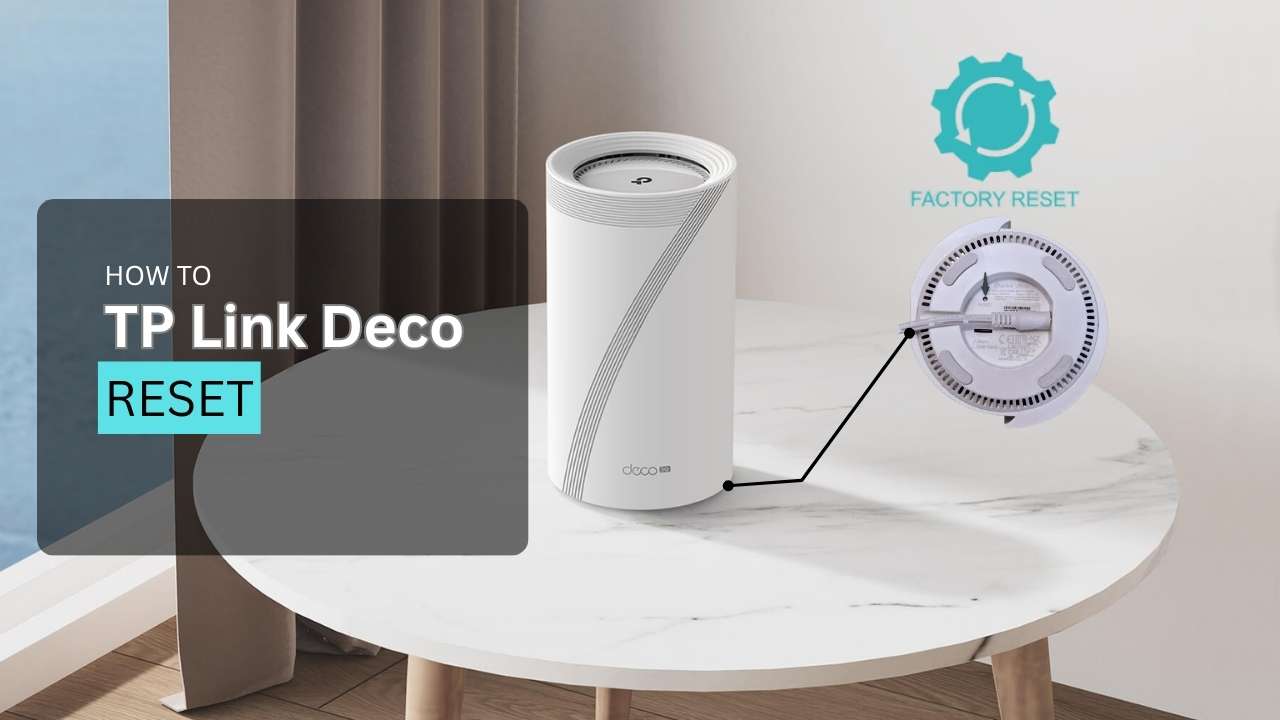
Resetting your TP-Link Deco can fix connection issues, clear forgotten passwords, or prepare the system for a fresh setup. Here’s everything you need to know about resetting any Deco model—fast, clear, and straight to the point.
Two Types of Resets: Soft Reset vs Hard Reset
Soft Reset (Quick Fix, Settings Stay)
A soft reset reboots your Deco without erasing your WiFi name, password, or network settings. Use this when your Deco is sluggish or devices keep disconnecting.
When to use:
- Slow speeds
- Devices dropping connection
- Minor glitches
How to do it:
- Press and hold the Reset button (on the bottom of the Deco) for 1–2 seconds.
- The LED will blink, the Deco will reboot, and your settings remain intact.
Hard Reset (Factory Reset, Wipes Everything)
A hard reset erases all settings—WiFi name, password, configurations—and returns your Deco to factory defaults. You’ll need to set it up again from scratch.
When to use:
- Constant disconnects that soft reset won’t fix
- Forgot your WiFi password or admin login
- Selling or giving away your Deco
- Network won’t respond at all
How to do it:
- Press and hold the Reset button for 10 seconds or more.
- Watch the LED—it will turn off, then blink yellow (or solid yellow on some models).
- Release when the LED changes. The Deco will restart and flash blue when ready for setup.
How to Reset TP-Link Deco Using the Deco App
If you prefer using the app instead of the physical button:
To Reset a Single Deco Unit:
- Open the Deco app.
- Tap the Network tab → select your network map.
- Tap the Deco unit you want to reset.
- Tap the three-dot menu (top right) → select Remove.
- Confirm by tapping Remove again.
- The unit resets to factory settings. Wait until the LED flashes blue—it’s ready for setup.
To Reset the Entire Deco Network:
- Reset satellite units first, one at a time (using the steps above).
- Reset the main Deco last (the one connected to your modem/router).
- After all units show blinking blue LEDs, you can set up the network again from scratch.
What Happens After a Reset?
After a Soft Reset:
- Deco reboots
- All settings stay the same
- WiFi comes back online in 1–2 minutes
After a Hard Reset:
- All settings are erased
- LED will flash blue (pairing mode)
- You must set up the Deco again using the Deco app
Troubleshooting: What If the Reset Doesn’t Work?
Problem: Reset button doesn’t seem to work
Fixes:
- Unplug the Deco, wait 30 seconds, plug it back in, wait 2 minutes, then try resetting again.
- Try holding the reset button while plugging the power back in—keep holding for a few seconds.
- Use a pin or paperclip to make sure you’re pressing the button properly.
Problem: LED stays red or won’t turn blue after reset
Fixes:
- Power cycle the Deco (unplug for 1 minute, plug back in).
- Try resetting again—hold for the full 10 seconds until the LED changes.
- If it’s stuck in “recovery mode,” hold reset for just 1–2 seconds to snap it out.
Problem: Deco keeps resetting itself after modem reboots
This can happen if the main Deco loses its connection settings when the modem restarts.
Fixes:
- After the modem comes back online, power cycle the main Deco.
- Try a quick 1-second reset press (soft reset) to force reconnection without wiping settings.
- If that doesn’t work, check if firmware updates are available in the Deco app.
Problem: Factory reset via app didn’t work
Fixes:
- Use the physical reset button instead (10-second hold).
- Make sure you’re removing satellite units first, main unit last.
Step-by-Step: Setting Up Deco Again After Hard Reset
Once your Deco is reset and flashing blue:
- Open the Deco app on your phone.
- Log in with your TP-Link ID (or create one).
- Tap “+” to add a new Deco.
- Select your Deco model (e.g., M5, X20, XE75).
- Follow the app instructions:
- Connect the main Deco to your modem via Ethernet.
- Wait for the LED to flash blue.
- Create your new WiFi network name and password.
- Add any additional Deco units by tapping “+” again and placing them within range of the main unit.
When Should You Reset Your TP-Link Deco?
- Soft reset: Use this first for minor issues—slow speeds, random disconnects, one device acting up.
- Hard reset: Use when soft reset doesn’t work, you’re locked out, or starting fresh with a new setup.
FAQs: Resetting TP-Link Deco
A: Blinking yellow = reset in progress. Solid yellow = reset complete (on some models). Flashing blue = ready for setup.
A: This is a known issue with some setups. Try a soft reset (1-second press) after the modem comes back online, or update firmware via the app.
A: Yes. Use the physical reset button on the bottom of each unit.
A: Use the app to remove that specific unit, or press its reset button for 1 second (soft) or 10 seconds (hard).
A: For a hard reset of the whole system, yes—reset satellites first, then the main unit last.
A: Soft reset: 1–2 minutes. Hard reset: 2–3 minutes until the LED flashes blue and it’s ready for setup.
A: Yes. A soft reset briefly disconnects devices but they reconnect automatically. A hard reset wipes everything—you’ll need to reconnect all devices manually after setup.
That’s it—resetting your TP-Link Deco is simple once you know the difference between soft and hard resets. Start with a soft reset for quick fixes, and only do a hard reset when you need to wipe everything clean and start fresh.